

Microsoft Office Documents Closed Unexpectedly
We have all been there. You are working on a Word document and your computer has an issue and either closes the Microsoft Word or shuts down entirely. Now I know what you are thinking, this is finally the situation to run to the garage and find that rusty hammer that you picked up from the garage sale oh so many years ago. It was only $1 so it was a deal you couldn’t pass up.
Before you install that rusty hammer as a “new” piece of hardware in your computer try some different options. First, if Microsoft Word closes unexpectedly there usually is a recovery option to restore the file that closed. Reopen Microsoft Word and the file recovery box should open and show you the file that closed.
In the event that this does not work you can search for a file that Windows created for your document.
Open your File Explorer and select My Computer.
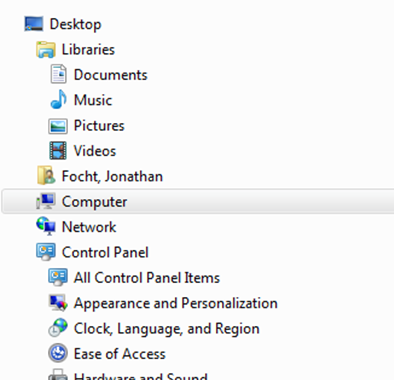
Next, in the Search Box type .asd

Let your computer search your drives for the autosave document. Be aware that depending on your setup this could take a little while. In time your computer will find the files like the one below.
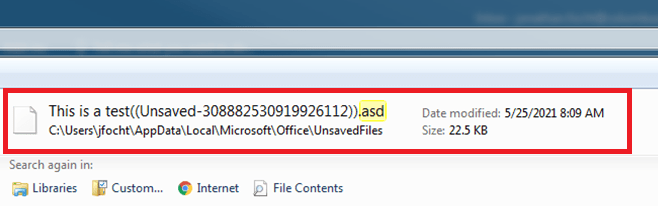
Once this file is found you can double click on it. Because it is an autosave file it will tell you that you either need to search the web for a way to open the document or you can choose to select a program already on your computer. That is the option we want, Select the Program already on your computer.
In the box that now opens look for your Microsoft Word program. You may have to expand a collapsed menu to find it. Select Word and now your document will open as an autosave file. Be sure to save that file so that you do not repeat these steps.
It is reassuring to know that Windows does have your back when it comes to an unexpected issue with Word.
So put down that hammer and carry on!
 Jellie Tech