
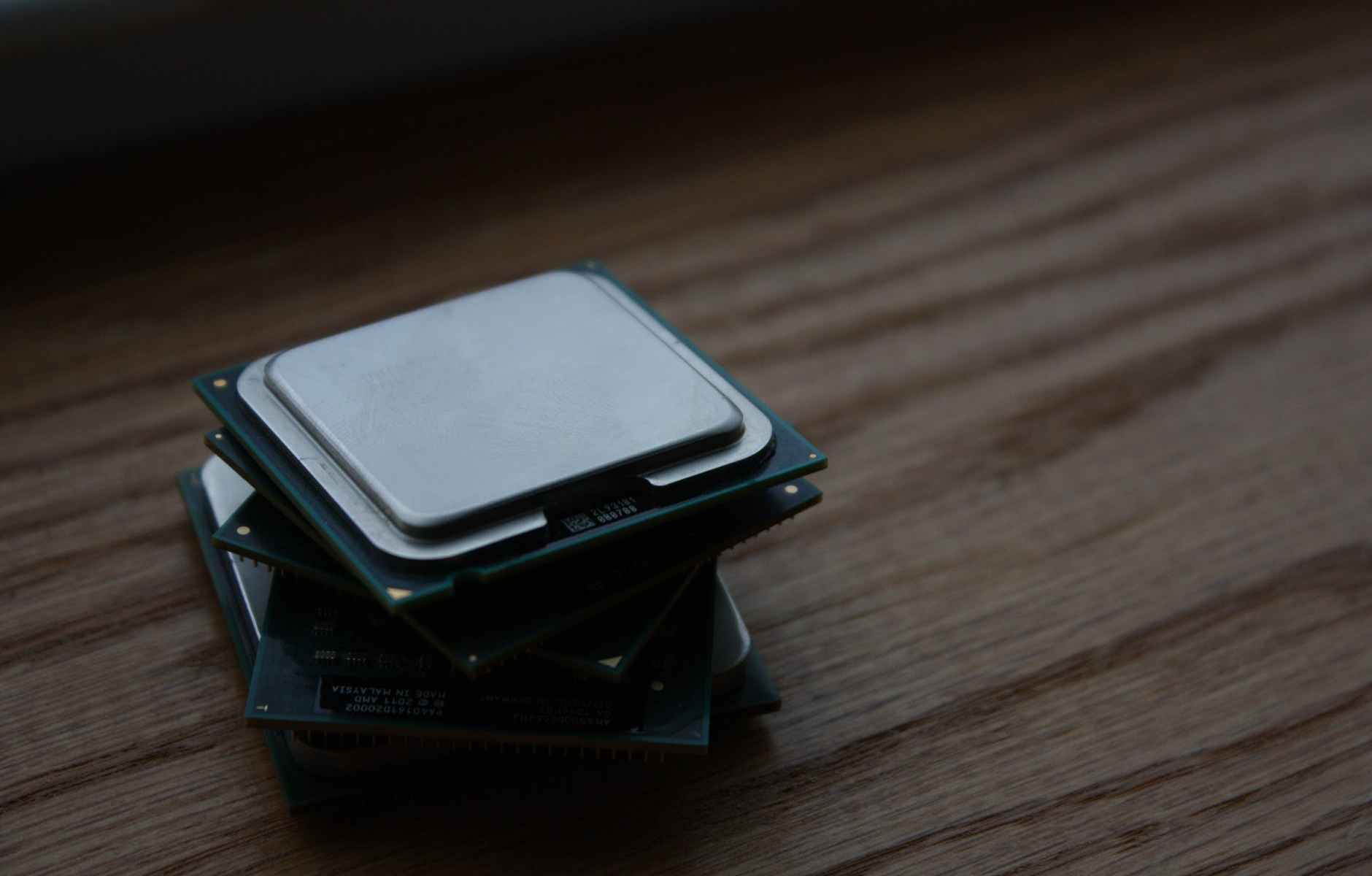
CPU CORES AND THREADS
When purchasing a CPU, marketers will emphasize certain statistics to impress you. 4.0 speed without overclocking, 8 cores, 16 threads are all common advertising phrases but sometimes the average user is unfamiliar with what they company is bragging about.
Let’s take a deep dive into understanding what a CPU is, what the CPU does and technical terms.
What is a CPU and what does it do?
A central processing unit (CPU) is the heart of any computer. The CPU is responsible for all data processing operations. Additionally, it directs the operation of all computer components, like the brain to our bodies. CPU’s are primarily made by two companies – AMD and Intel.
A CPU stores cache. The CPU never has direct access to the RAM so it uses at least one layer of cache. The cache stores data and instructions to keep the CPU from having to wait for data to be retrieved from RAM. When the CPU requires data—and program instructions are considered data—the cache checks to see if the data is already residing in the cache and returns it to the CPU. The cache will check to see what data is needed for the next operating and transfer it from the RAM to the CPU so that it is ready when the user requests it. CPU cache sizes usually range from 1MB to 32MB depending on the CPU and intended use.
CPU technical terms
When choosing a CPU there are some specific things to keep in mind.

Socket type. The socket is basically the way the CPU fits and integrates to the motherboard. Sounds straight forward, but if you buy a CPU that does not match the socket type for your motherboard it will not sit on the motherboard or work. Be sure to check the specs of your build to make sure all components are compatible.
Cores. A core is, in a basic sense, a processor. Processor companies will brag about the number of cores, 4, 6, 8, 12 and even more. Each core enhances the multitasking ability of the CPU. Think of the CPU as a road network. The cores are like highways. It allows for quick travel, or in the case of a computer, fast read and write speeds for information. The more, “highways” or cores you have the less congested your system will be.
Threads. Threads can allow each core to act as two but run at half the clock speed. For example, you may have a 6 core processor but 12 threads. So the CPU has 6 physical cores but can have 12 virtual cores. Let’s go back to the illustration of a road network. A 6 core CPU would be like having 6 individual highways. Traffic moves but if you add another lane to the highway things move more efficiently. A 12 thread CPU would allow for 6 “highways” but each with two lanes of traffic. Ultimately, the threads help increase efficiency and make your system run smoother.

Clock Speed. The clock speed is measured in GHz. This indicates how many processes the CPU can handle each second. For example, a 4.0 GHz processor can handle 4 billion processes each second. The higher the clock speed the better your overall performance will be.
Overclocking. Before overclocking, be sure that your CPU and motherboard chipset support overclocking. Overclocking increases the base clock speed allowing your CPU to process more information each second. This, however, will make the CPU work harder and produce more heat so be sure to check the maximum clock speed spec from the manufacturer and make sure you have sufficient cooling on the CPU.
Cache. As we mentioned earlier, it is high-speed memory assigned to the CPU to make future retrieval of data much faster before processing. The benefits of a larger cache will be primarily reflected on multitasking performance. Modern CPUs have an L1, an L2, and an L3 cache (which is called the Smart Cache with Intel CPUs), and each level boasts more memory than the previous one, but the smaller caches can operate faster.

Thermal Power Design. Also known as TPD, this indicates how much power your processor needs to operate correctly as well as the temperature the CPU is expected to run at. Be mindful that these values are not the maximum values. The maximum power draw and maximum temperature will vary from the TDP. It’s not a common spec to look at but it will indicate the temperature and power draw for your CPU which is useful for cooling and power supply selection.
Integrated Graphics. As the name says, it is an onboard graphics processing unit which eliminates the need for a dedicated graphics processing unit (GPU). If you are not looking to use your computer for heavy processing or gaming (and you want to save some money) look for CPU’s that have integrated graphics. Anything above basic computing and you will want to look for a GPU to along with your CPU. As a note, a CPU with integrated graphics is a good backup in case your GPU decides to fail. But again, it will not work as a backup for heavy gaming.
We hope you found this article informative and helpful when it comes to understanding CPU’s.
Don’t miss an article when it’s published by following and subscribing for email updates!
 Jellie Tech